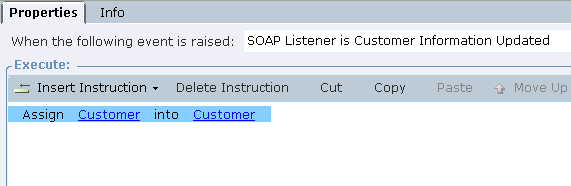
Customer Information Updated Solution – Example
When you configure the Customer Real-Time Client API solution, a link to the Customer Business Entity is created. This allows information sent from the organization to populate the Customer Business Entity.
To use the Customer Information Updated predefined library:
| 1. | Follow the instructions in Designing Real-Time Client API Solutions in Real-Time Designer; In Step 7, select Customer Information Updated. |
| 2. | In the new event, from the Properties tab, select Insert Instruction. |
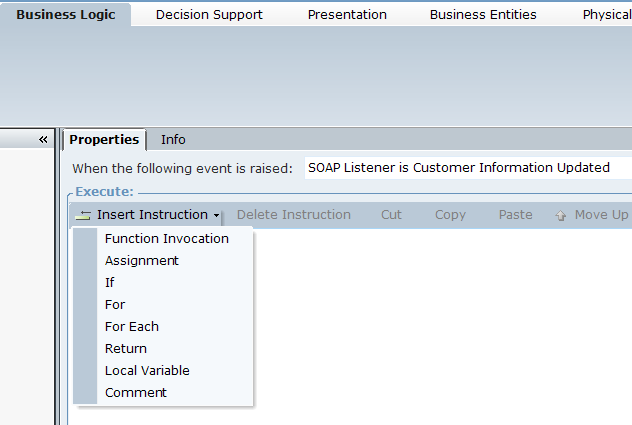
| 3. | From the Insert Instruction drop-down menu, select Assignment. The Assign link appears. |
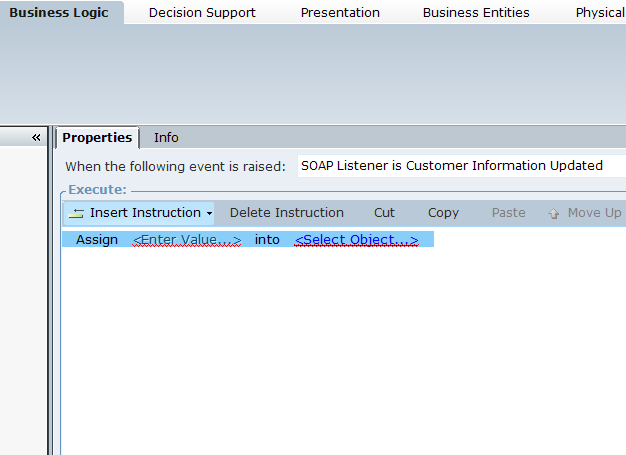
| 4. | From the Assign link, select the <Select Object...> link. |
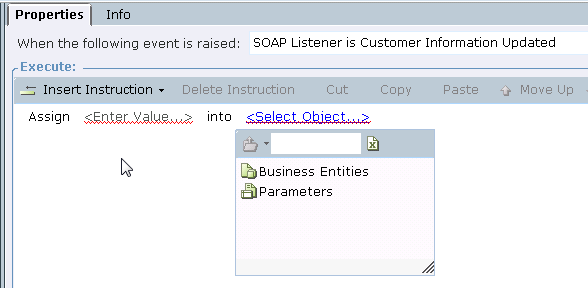
| 5. | From the drop-down menu, double-click Business Entities. The standard Assignment window displays Customer. |
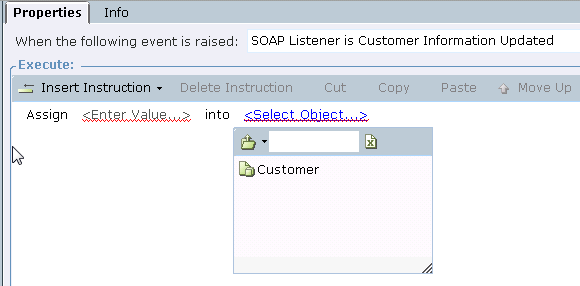
| 6. | Select Customer. The Force Select (do not drill in) checkbox appears. |
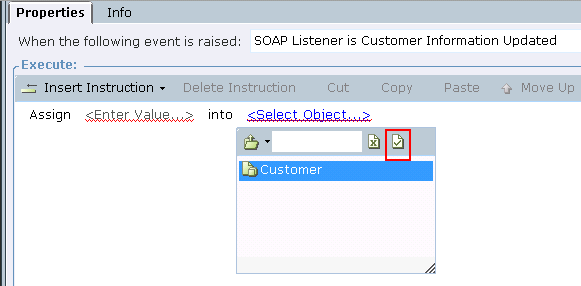
| 7. | Select the Force Select (do not drill in) checkbox. The <Select Object...> link turns into a Customer link. |

| 8. | Select the <Enter Value...> link. |
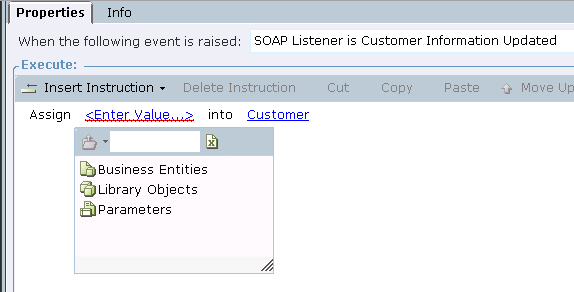
| 9. | From the drop-down menu, double-click Parameters. The standard Assignment window displays Customer. |
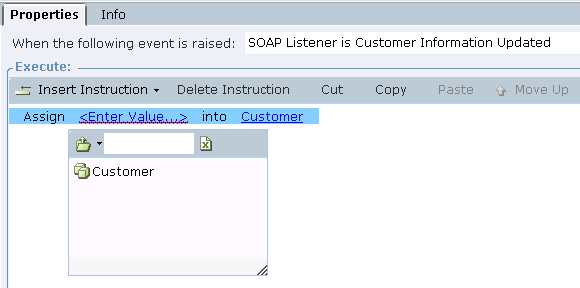
| 10. | Select Customer. The Force Select (do not drill in) checkbox appears. |
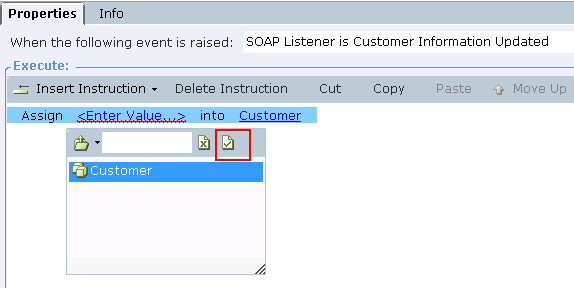
| 11. | Select the Force Select (do not drill in) checkbox. The <Select Object...> link turns into a Customer link. |